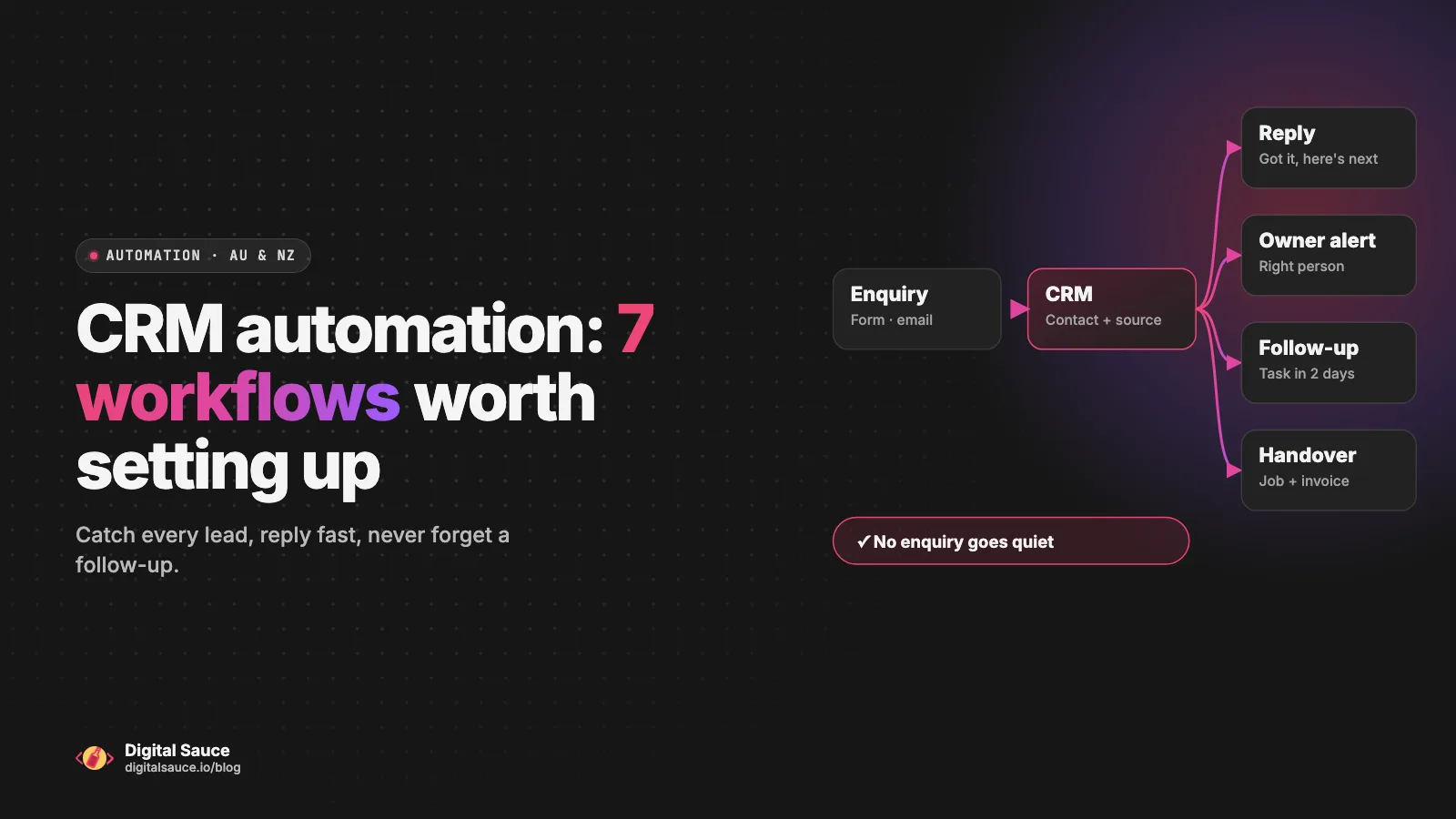
CRM automation means your customer relationship manager (CRM) does the routine steps for you: it logs every new enquiry, replies to say you've got it, tells the right person, reminds them to follow up, and passes won work on to delivery and invoicing. For most small businesses, the seven workflows below cover the jobs that matter. Start with lead capture and follow-up reminders, because that's where enquiries most often go quiet.
I'm Sanket, founder of Digital Sauce in Melbourne. We design and build apps, and connecting them to the CRMs and accounting tools our clients already use is part of nearly every project. That's where our workflow automation work comes from. This guide is for Australian and NZ owners and operations people who have a CRM, or a spreadsheet pretending to be one, and want it to do more of the work.
What is CRM automation?
CRM automation is a set of rules that run when something happens to a contact or a deal. A form is submitted, so a contact is created. A deal hasn't moved in a week, so the owner gets a task. A deal is marked won, so a job is set up and a draft invoice appears. Every rule has a trigger and one or more actions.
Some rules run inside the CRM itself. Others run in a connector tool like Zapier, Make or n8n, which sits between the CRM and your other apps. Either way, the aim is the same: no enquiry depends on someone remembering to copy it across, and no quote goes quiet because nobody set a reminder.
If you want the bigger picture first, from invoices to reporting, read our guide to business process automation for Australian small businesses. This post stays on the CRM.
Which CRM workflows should a small business automate first?
Start with the workflows that catch and keep leads: getting every enquiry into the CRM, acknowledging it straight away, and reminding someone to follow up. After that, automate the handovers when a deal is won. Here are the seven I'd look at, roughly in order.
7 workflows
What to automate in your CRM, in order
Every form, email and booking enquiry lands in the CRM, tagged by source.
When an enquiry arrivesA short reply saying you've got it and when you'll be in touch.
When a new contact is createdThe right person owns the lead and hears about it where they work.
When a lead matches a ruleA task appears if a lead or quote has had no reply after a few days.
When nothing happens for X daysA job or project is set up and the delivery team gets the details.
When a deal is marked wonA draft invoice or deposit request is created in Xero or MYOB.
When a deal is won or a job is doneDuplicates get flagged, stale deals get nudged, and a weekly summary goes out.
When on a scheduleHighlighted: where most small businesses lose enquiries. Start there.
1. Lead capture
Every enquiry, whether it comes from your website form, a shared inbox, a booking tool or a Facebook lead form, should create or update a contact in the CRM automatically. Record where it came from, too. Watch out for duplicates: match on email address or phone number first, so a returning customer updates their existing record instead of becoming a second contact.
2. Instant acknowledgement
Send a short, plain reply as soon as the enquiry lands: thanks, here's what happens next, and when they'll hear from a person. It shows people you're on it and stops them ringing three of your competitors in the meantime. Watch out: keep it a reply to their enquiry, not a sales pitch. Marketing has its own rules, which are covered below.
3. Routing and alerts
Assign the lead to an owner by service, suburb, size or round robin, then let that person know in whatever they actually check, whether that's email, Slack, Microsoft Teams or a text. Watch out: one alert per lead, sent to one person. If everyone gets notified, everyone assumes someone else will deal with it.
4. Follow-up reminders
If a new lead hasn't been contacted within a day, or a quote has had no reply after a few days, create a task for the owner. This is the workflow I'd build first if I could only build one, because quiet quotes are where small businesses lose the most work without noticing. Watch out: have the automation remind a person rather than send a canned "just checking in" email. A real person writing two lines usually beats a template.
5. Won-deal handover
When a deal is marked won, set up the job or project in your delivery tool, copy across the scope and contact details, and let the team know. It's the moment details most often get lost between sales and delivery. Watch out: decide which system is the source of truth for each field, so two apps don't keep overwriting each other.
6. Won deal to invoice
Create a draft invoice or deposit request in your accounting software when a deal is won, or when the job is done, and have a person approve it before it's sent. Watch out: let Xero or MYOB handle the GST using its own tax settings. Don't calculate tax inside the automation.
7. Pipeline hygiene
On a schedule, flag possible duplicates, deals with no next step, and deals that haven't moved in a month, then send the owner a short weekly summary. Watch out: flag records for a person to review instead of auto-deleting them. A merge that goes wrong is painful to undo.
Here's how the first four connect for a typical service business:
Typical example · Enquiry to follow-up
No enquiry goes quiet
Website form, email or booking
Matched on email, source tagged, consent noted
Customer hears back, owner is notified
If no reply in 2 days, a person follows up
An illustration of a typical workflow, not a specific client project.
Should you use your CRM's built-in automation or Zapier, Make or n8n?
Use the CRM's built-in automation for anything that happens inside the CRM, like assigning owners, creating tasks or moving stages. Use a connector tool like Zapier, Make or n8n when the workflow crosses into other apps, like your website, inbox, accounting or job software. Most small businesses end up using both.
Check what your plan includes before you build, because built-in automation is often a paid-tier feature. As of November 2026:
- HubSpot lists workflows on its Professional and Enterprise subscriptions.
- Pipedrive says its workflow automation is available on Growth and higher plans, and it can only send emails from the address you've synced to Pipedrive.
Other CRMs differ, so check your vendor's current plan page.
| Option | Good for | Watch out for |
|---|---|---|
| Built-in CRM automation | Tasks, owner assignment, stage changes, internal alerts | Often needs a higher plan; limited reach into non-partner apps |
| Zapier | Quick "when this, do that" links between popular apps (it lists 9,000+ apps) | Costs grow with the number of tasks; complex branching gets fiddly |
| Make | Visual workflows with branches and data reshaping (Make help centre) | Takes a little longer to learn |
| n8n | More control, AI steps, and the option to self-host so data stays where you choose | Self-hosting means someone owns updates and uptime |
| Custom code | High volumes, unusual apps, or logic no tool handles well | Needs a developer to maintain it |
Before building anything, check the connections your tools already offer. Your CRM's own forms, or an existing integration in the Xero App Store, may already do part of the job. HubSpot, for example, has its own forms that create contacts directly.
Where does AI help in a CRM, and where doesn't it?
AI helps with the reading and writing: sorting enquiries by type, pulling details out of messy emails, summarising long threads, and drafting replies for a person to check. It doesn't help when it sends messages without review, makes decisions nobody can explain, or fakes a personal touch.
Good uses:
- Working out what an enquiry is asking for and routing it to the right person.
- Pulling the suburb, service and budget out of a free-text email into proper CRM fields.
- Summarising a long email thread on the deal record before a call.
- Drafting a first reply in your tone, for a person to edit and send.
Where I'd hold back:
- Sending AI-written emails to customers without anyone reading them first.
- "Personalised" mass outreach that mentions someone's LinkedIn post to sound human. People can tell.
- Scoring or rejecting leads in ways nobody can explain or check.
- Sending more customer data to an AI tool than the task needs.
The Australian Government's guidance on AI for business says the same thing we do: check what AI produces before you rely on it.
What privacy rules apply to customer data in Australia and NZ?
In Australia, the Privacy Act and its Australian Privacy Principles (APPs) govern how many businesses collect and use personal information. The Spam Act covers marketing emails and texts. In New Zealand, it's the Privacy Act 2020 and the Unsolicited Electronic Messages Act 2007. CRM automation touches all of them, so build them in from the start. This is general information, not legal advice.
- Marketing needs consent. Australia's ACMA says you must have consent before sending marketing messages. Every message must identify you, include your contact details and have an unsubscribe option, and unsubscribe requests must be honoured within 5 working days. NZ follows the same consent, identify, unsubscribe steps.
- Record consent in the CRM. Both regulators say it's up to the sender to prove consent. Have the automation save where and when each contact opted in, and make unsubscribes update the CRM straight away.
- Know which rules apply to you. Not every small business is covered by Australia's Privacy Act, but many are, and the APPs are a sensible baseline either way. The OAIC also has guidance on privacy and commercially available AI products.
- NZ and AI. The Office of the Privacy Commissioner's position is that the Privacy Act applies to anyone using AI tools in New Zealand. Its AI guidance is worth a read before you send customer data to one.
- Send less data. An automation only needs the fields for the job. If an AI step only needs the enquiry text, don't send it the whole contact history.
How do you know an automation is worth it?
Measure the problem before you build the automation, then measure the same thing a month after. For a CRM, the useful numbers are simple: how quickly new enquiries get a first reply, how many leads have no next step, and how many quotes never got a follow-up.
- Time to first reply. If it's measured in days, workflows 1 to 4 will make a difference you'll notice.
- Leads with no next step. Count them now, then again in a month.
- Admin time. Roughly how long copying, chasing and setting up jobs takes each week.
- Errors. Duplicate contacts, wrong owners, invoices raised late.
Then keep it healthy. Make sure failure alerts go to someone who reads them, keep a person on anything customer-facing until you trust it, and review the workflows monthly for the first few months. CRMs and the apps around them change fields and connections, and a workflow that worked in March can quietly break in May.
Frequently asked questions
Do I need a paid CRM plan to automate?
Not always, but it helps. Built-in automation is often a paid-tier feature: as of November 2026, HubSpot lists workflows on its Professional and Enterprise subscriptions, and Pipedrive lists workflow automation on Growth and higher plans. On cheaper plans you can often connect the CRM to Zapier, Make or n8n instead. Check what your plan includes first.
Can I automate follow-up emails without sounding like a robot?
Yes, mostly by automating the reminder rather than the message. Have the CRM create a task when a lead or quote goes quiet, and let a person write two genuine lines. If you do send automated emails, keep them short and specific, and send them from a real person's address.
Which CRM is best for automation?
The one your team will actually keep up to date. Beyond that, check three things: what its built-in automation includes on your plan, whether it has a good API or Zapier, Make or n8n connection, and whether it connects to your accounting software, such as Xero or MYOB.
How do I connect my website forms to my CRM?
Either use the CRM's own form, which creates contacts directly, or send your existing form's submissions to the CRM through an integration, webhook or connector tool like Zapier, Make or n8n. Match on email address to avoid duplicates, and save the opt-in details if the person agreed to marketing.
Who maintains automations after they're built?
Someone has to own them. Whoever builds them should document what each workflow does and set up failure alerts. When we build automations, we watch the first live runs and hand them over with notes, and we agree up front who looks after them afterwards.
Read next
- Business process automation: where to startPick one task, automate it, check it works
- AI automation for small businessHow we map, build and hand over workflows
- Human + AI: how we ship appsThe four-step loop behind our fastest builds
- Discovery & StrategyWork out what is worth building first
Sources
- Create workflows, HubSpot Knowledge Base
- Create forms, HubSpot Knowledge Base
- Workflow automation, Pipedrive Knowledge Base
- App directory, Zapier
- Help centre, Make
- Hosting n8n, n8n docs
- Xero App Store, Xero
- Avoid sending spam, ACMA
- Three steps to ensure you are not spamming, NZ Department of Internal Affairs
- Australian Privacy Principles, OAIC
- Guidance on privacy and the use of commercially available AI products, OAIC
- Artificial intelligence (AI), Office of the Privacy Commissioner (NZ)
- Artificial intelligence (AI) for business, business.gov.au
Last updated 15 November 2026. CRM plans, features and limits change, so check each vendor's current documentation and pricing before you commit. The examples here are typical workflows, not client projects. This is general information, not legal advice.